Resident support
How to Answer Your Level Doorbell and View Missed Clips
When someone rings your Level Doorbell, you’ll see a notification on your phone.
Tip: Make sure you have enabled notifications for the Ambient Home app in your phone settings.
- Answer the Doorbell ringing notification.
- With the app closed, you’ll see a Doorbell ringing notification. To answer, tap the notification.
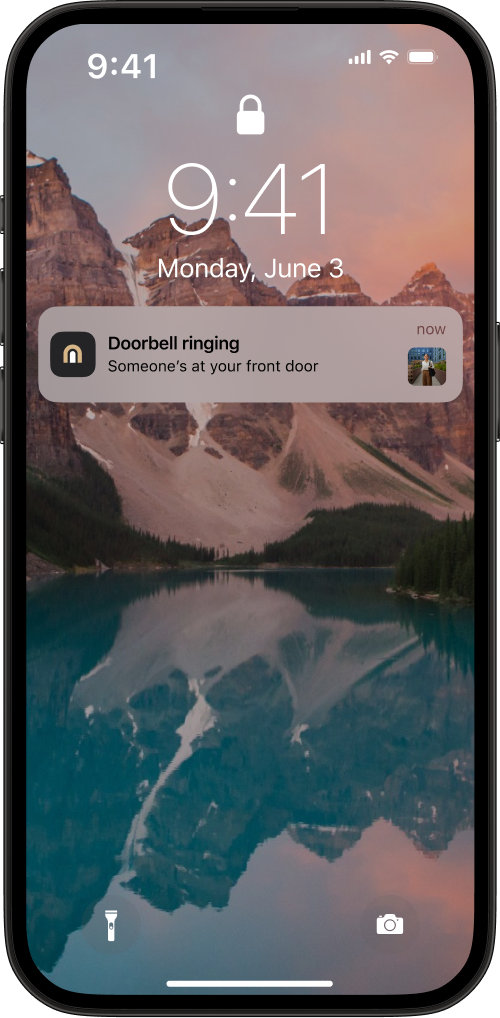
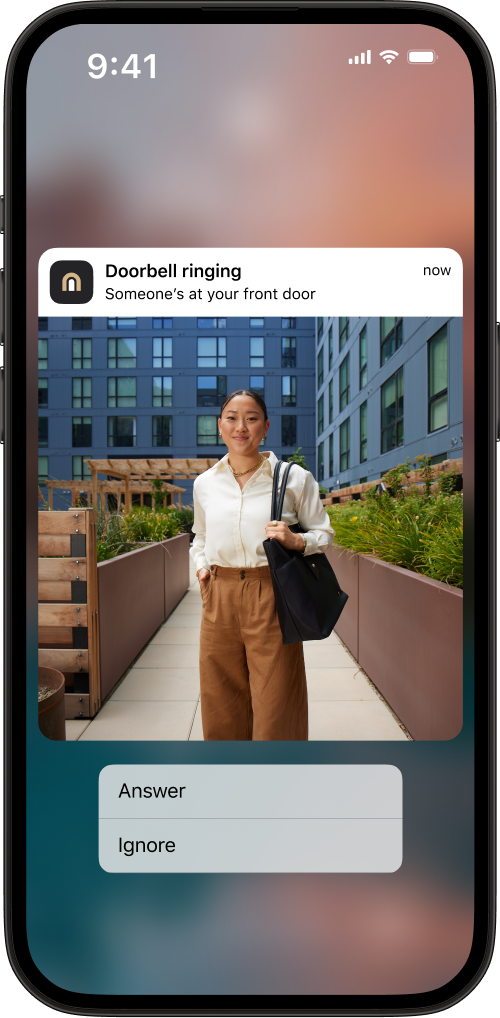
Tip: Tap and hold the notification to enlarge the image of the doorbell feed.
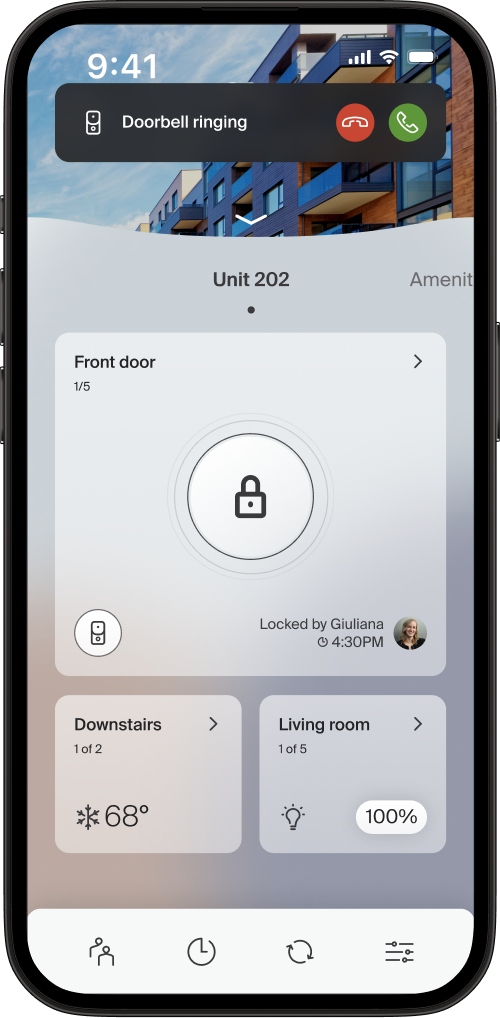
- With the app open, you’ll see a Doorbell ringing notification at the top of your screen. To answer, tap the green Answer button.
- From the video feed, you can:
- unmute to talk with your visitor
- unlock your door
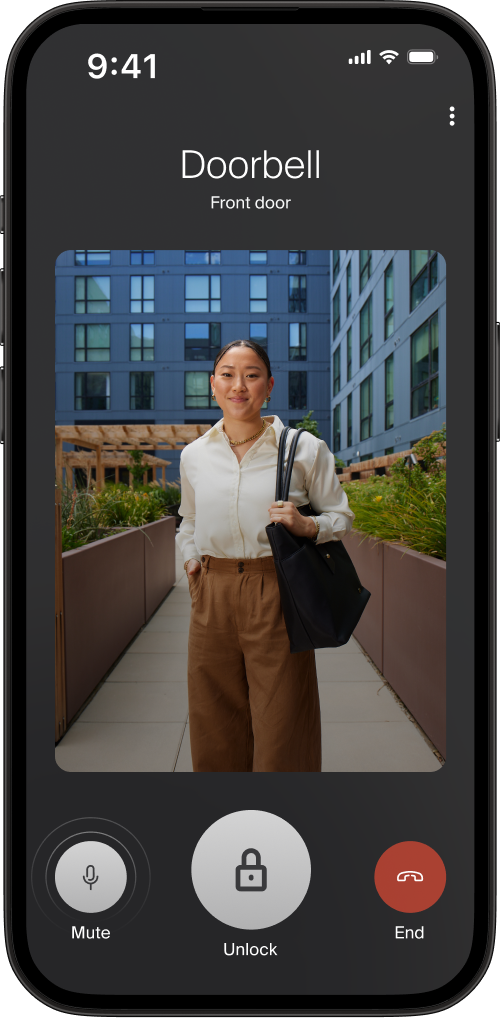
- Tap End to end the video feed.
Viewing Missed Clips
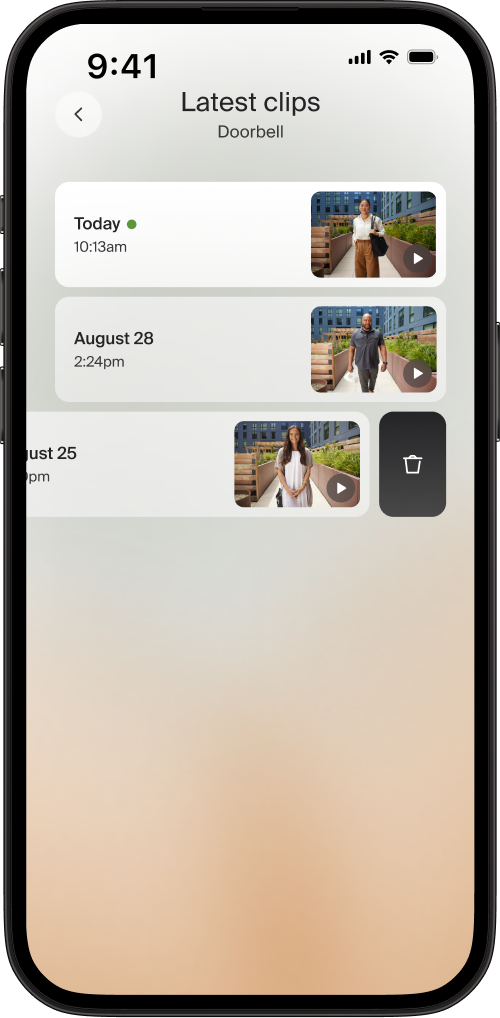
Residents can view a short clip of video and audio for each unanswered ring. If Latest clips are available, you can select the "Unanswered Doorbell" banner on your app home page or the small doorbell icon in your lock tile to access your Latest clips.
- For privacy, missed visits are only stored as 20 second video and audio clips for 72 hours and property staff and management will never have access to resident recordings.
- Note: Answered rings are not recorded and do not appear in “Latest clips”.