Staff support
Ambient Installer App Overview
Download the “Ambient for Installers” mobile app:
App Navigation
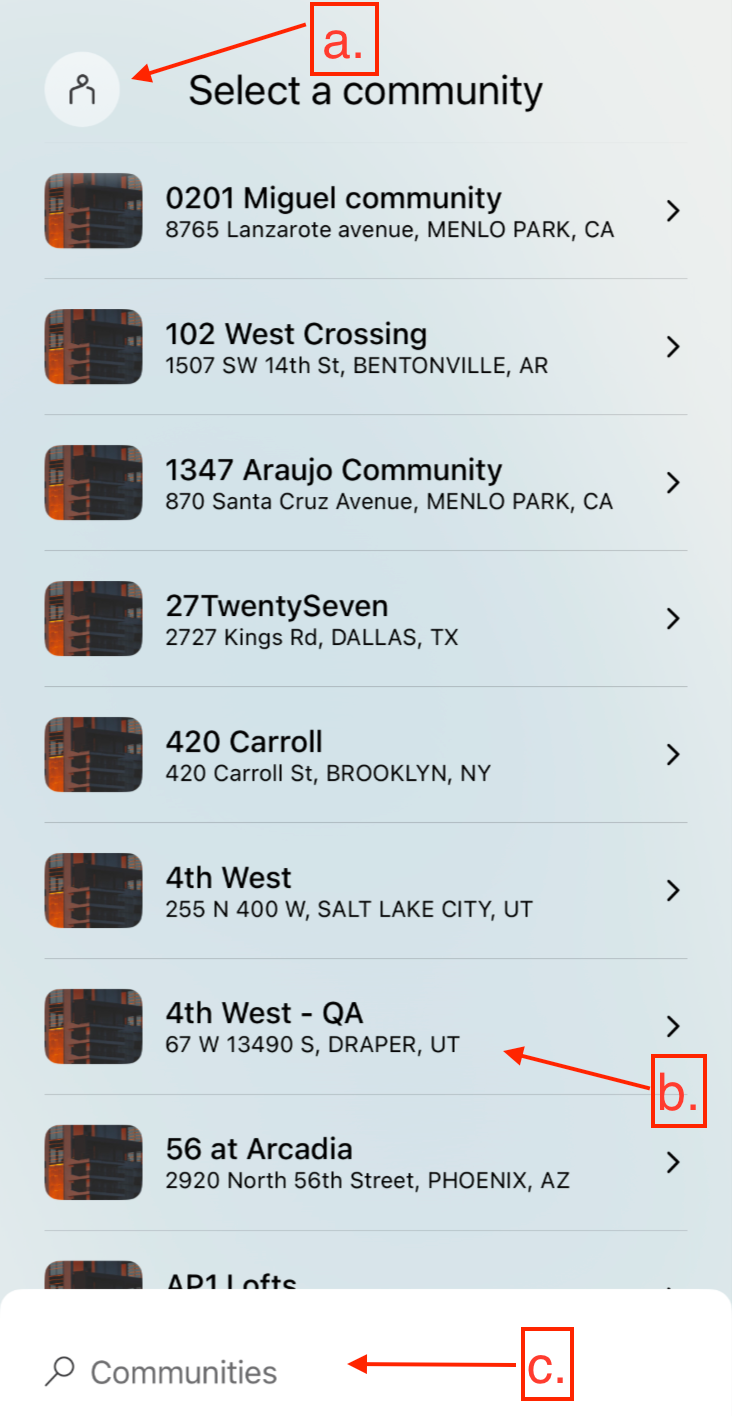
Community Selection: After logging into the app, your landing page will show all communities you have access to.
-
Account Profile Icon: Tap this to view a screen containing your name, email, and app version.
-
Community List: Scrollable list of all communities you have access to.
-
Search: Use the community search bar to find specific locations.
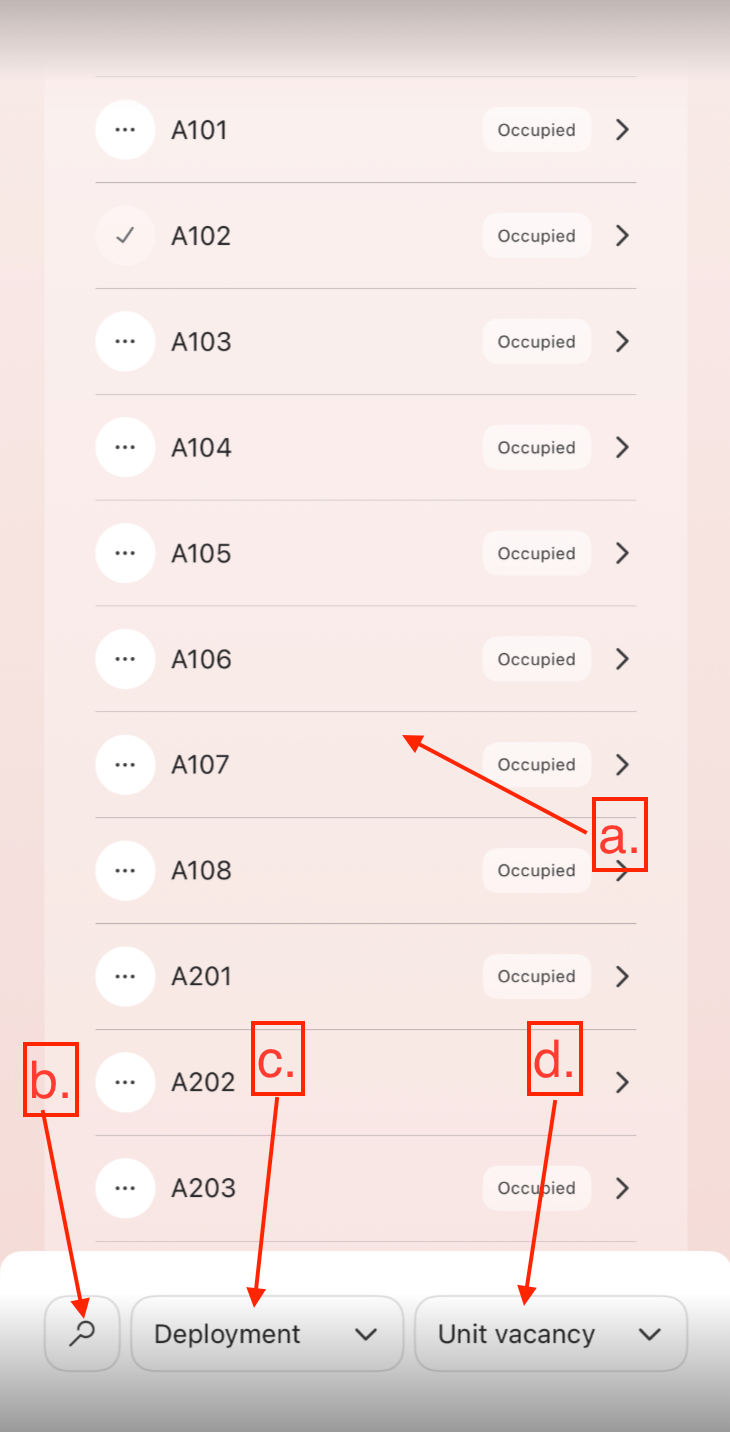
Community Landing Page: Tap into the community where you need to complete work.
-
Scrollable list of all units within the community.
-
Unit search bar.
-
Filter by installation status (Complete or Incomplete).
-
Filter by occupancy (Occupied or Unoccupied).
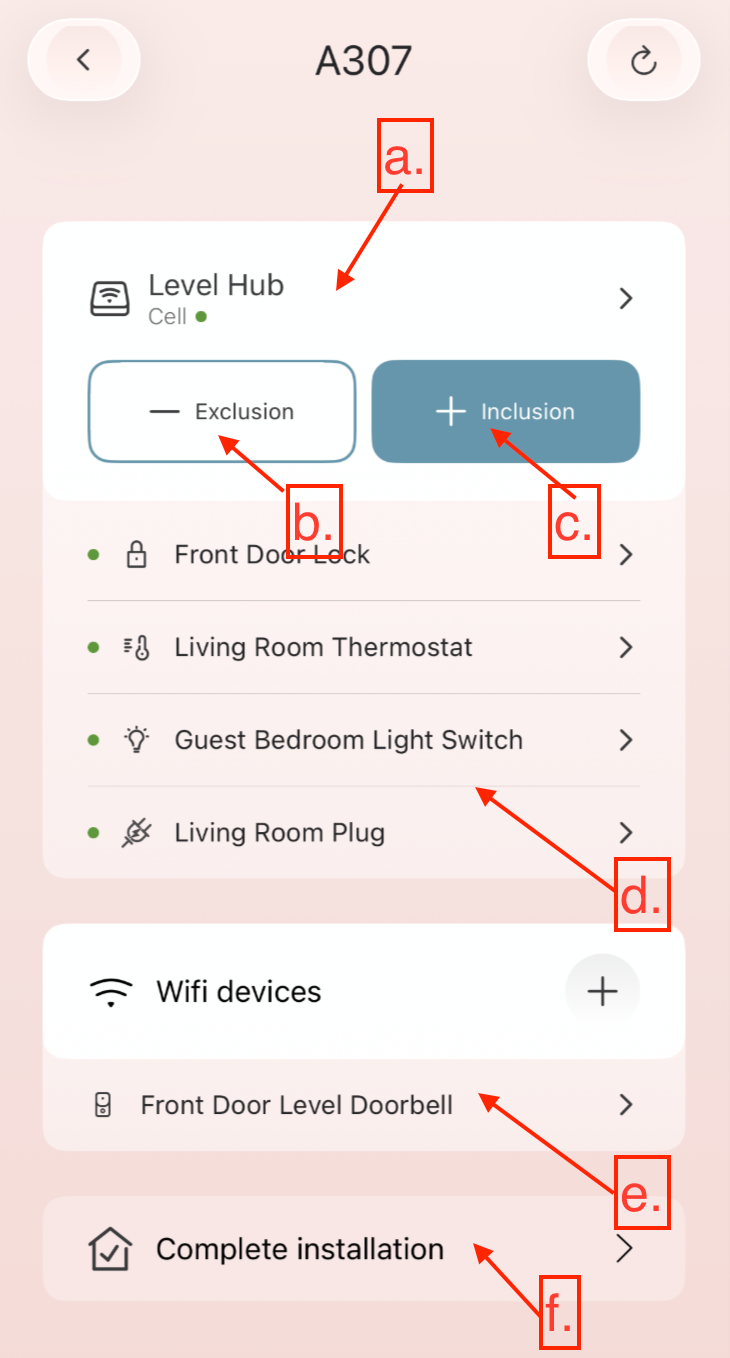
Unit Landing Page: Tap into the specific unit to view device details and hub status.
-
Hub Details: Tap the hub tile to see connection details (Cell/Ethernet) and hub health.
-
Exclusion: Puts the hub into exclusion mode to remove a Z-Wave device.
-
Inclusion: Puts the hub into inclusion mode to pair a new Z-Wave device.
-
Z-Wave Device List: Shows all Z-Wave devices associated with this hub.
-
Wi-Fi Device List: Shows all Wi-Fi based devices associated with this unit.
-
Mark as Complete: Tap this button once the unit install is finished.
-
Important: Marking an installation as complete cannot be undone.
-
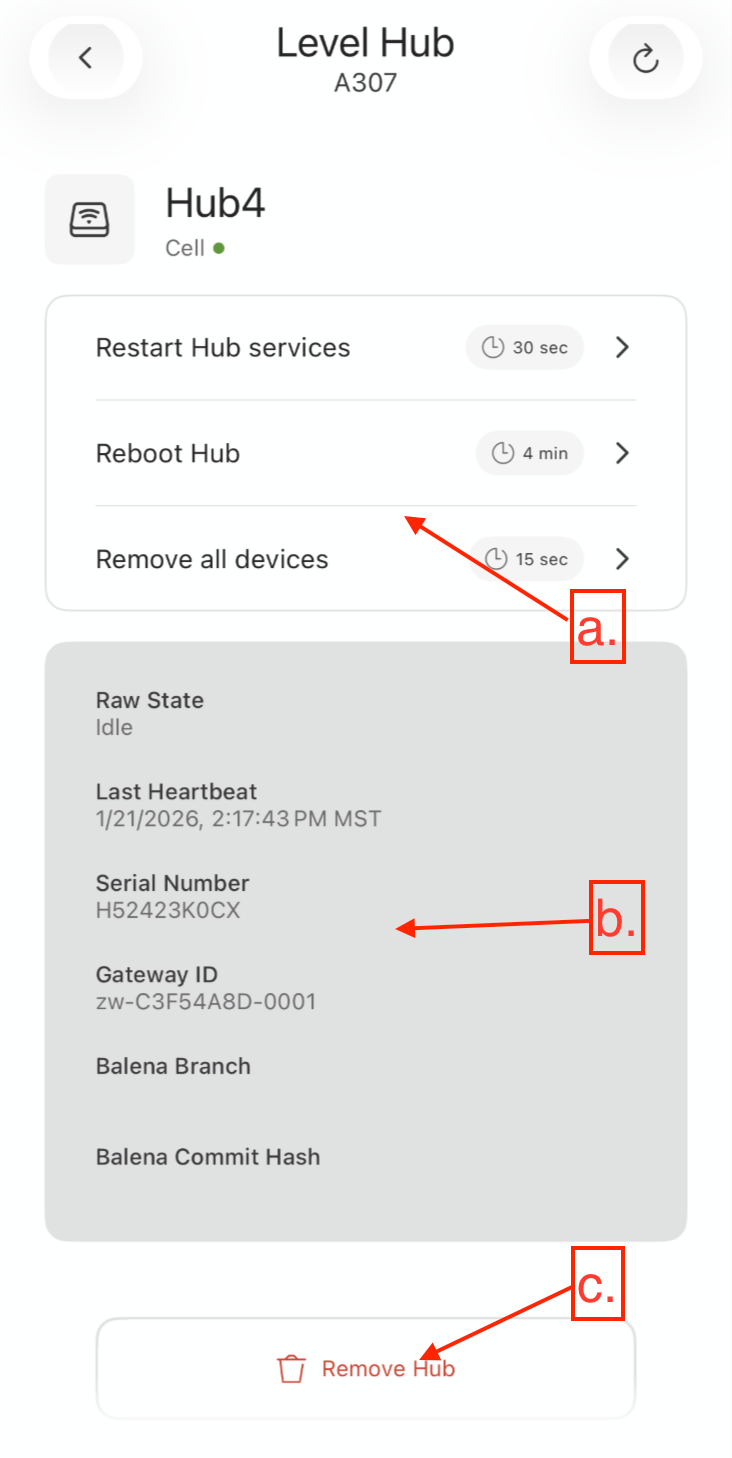
Level Hub Details Page: Accessible by tapping the hub tile on the Unit Landing Page.
-
System Controls: Options to Restart Hub Services, Reboot Hub, or Remove All Devices.
-
Important: Do not use these buttons unless explicitly directed by an Ambient representative.
-
-
Hub Information: Displays the Raw State, last check-in timestamp, and Hub Serial Number.
-
Remove Hub: This button removes all devices and disassociates the hub from the unit.
-
Important: Do not use this action unless directed by Ambient Support.
-
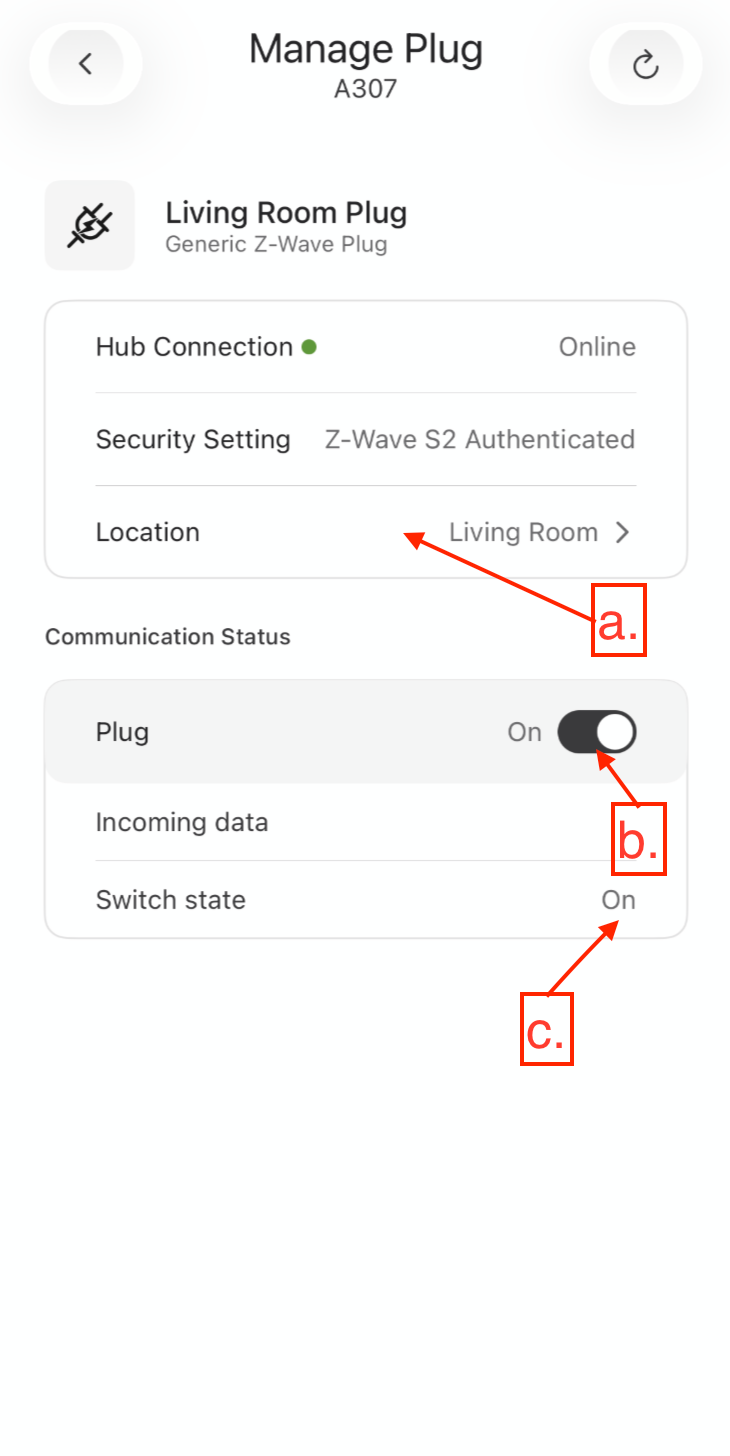
Z-Wave Device Details Page: Accessible by tapping any Z-Wave device from the unit list.
-
Status Menu: Shows connection status (online/offline), security class, and Location name.
-
State Toggle: Tap this to toggle the physical state of the device (e.g., On/Off or Lock).
-
Note: You cannot unlock door locks through the Installer App for security reasons.
-
-
Physical State: Displays the current confirmed state of the hardware.