

Staff support
Connecting a Hub to Managed WiFi
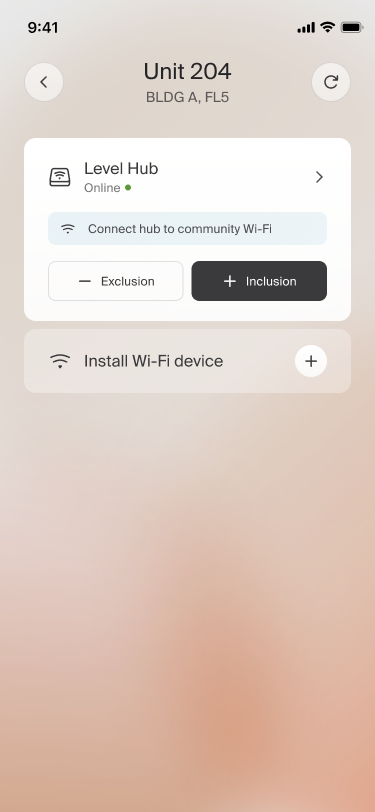
If Wi-Fi credentials are available within a community, the installer will receive a notification and action after the Hub has been successfully assigned. If there are no credentials available, this step will not be shown.
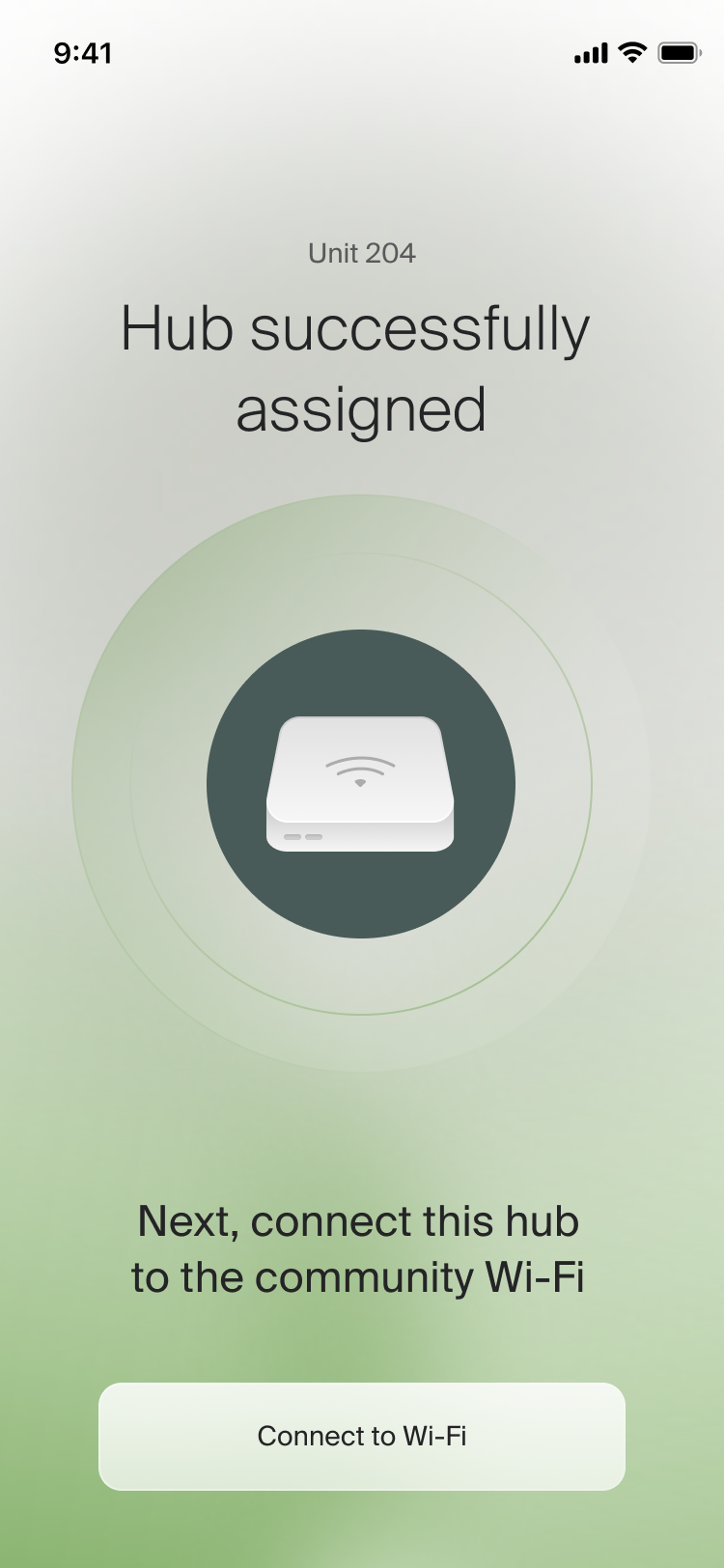
Note: If your community has a Managed Wi-Fi network and this feature is not available, contact Ambient Support to setup the Wi-Fi credentials for the community[cite: 184, 194].
An intermediate screen will display as the connection to Wi-Fi is being established. The installer does not need to input any details. This feature will pull the current credentials set in the Admin console and set them for the Hub.
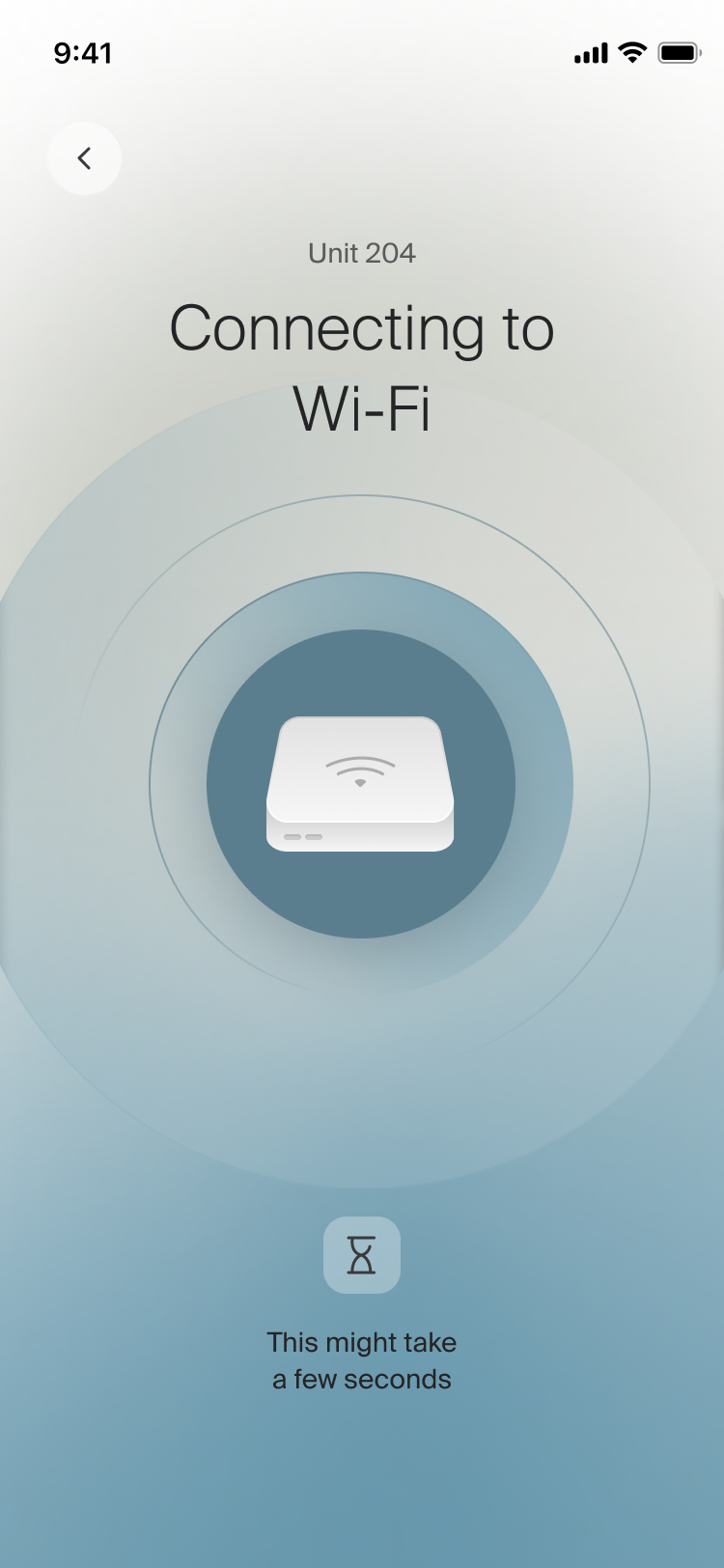
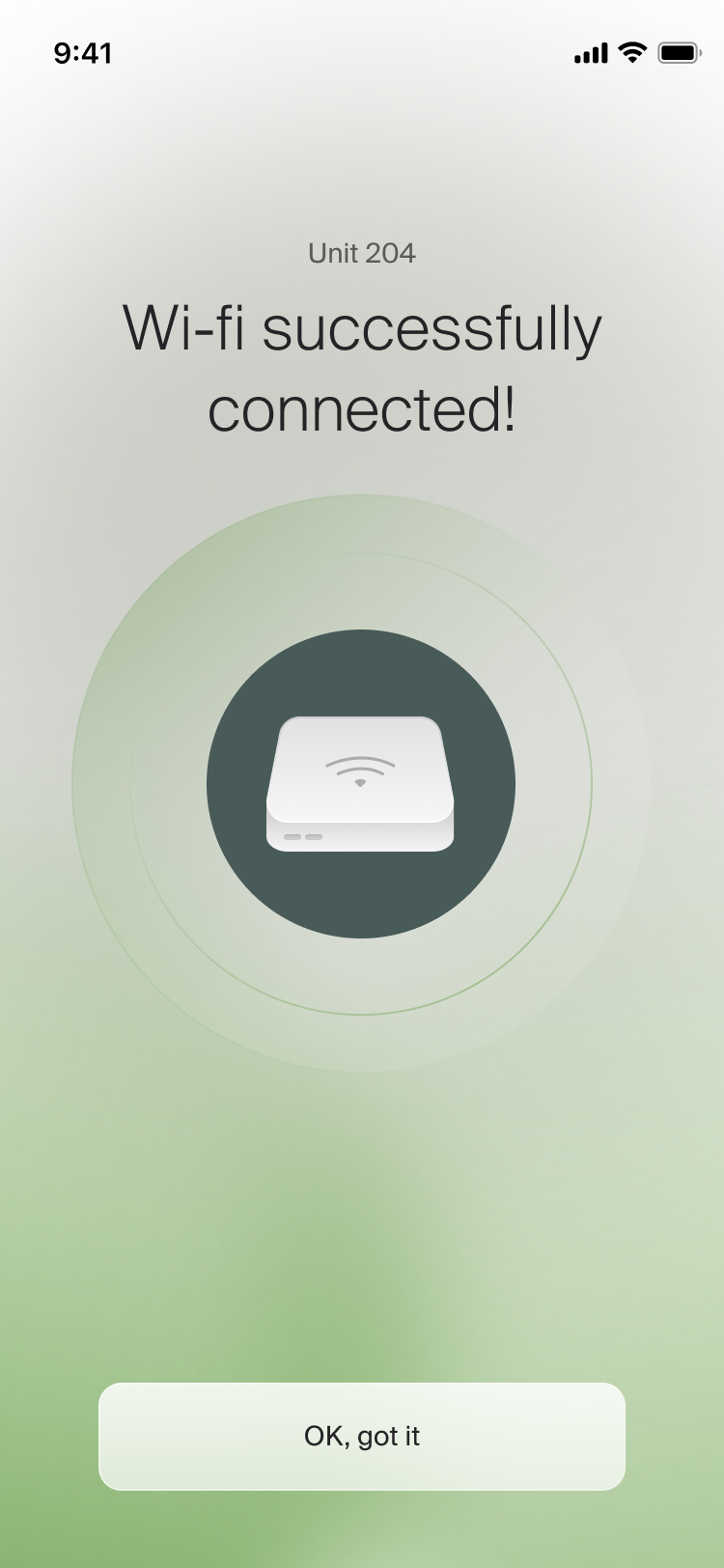
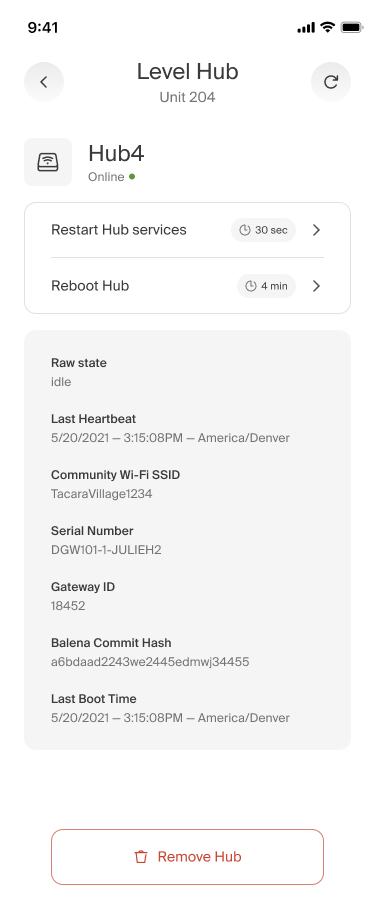
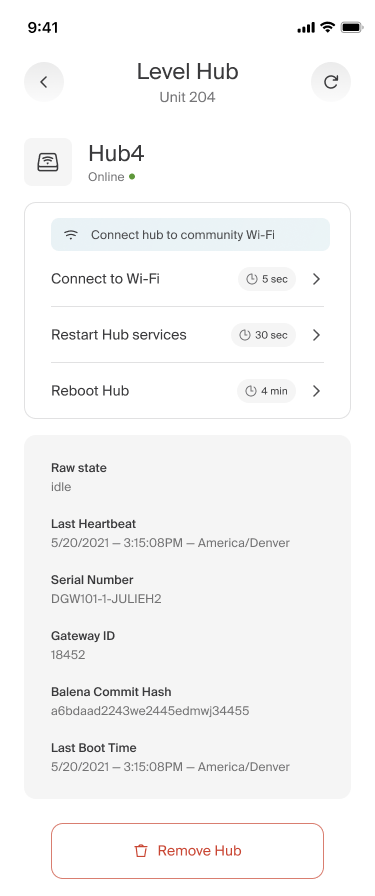
Successful connection will result in a success message and the Wi-Fi SSID details will now be in the Hub details card.
Note: The password will not be shared or displayed for the installer at any point.
 |  |
If the Hub is not able to connect to the Wi-Fi, the installer will be notified and instructed to reach out for support[cite: 194].
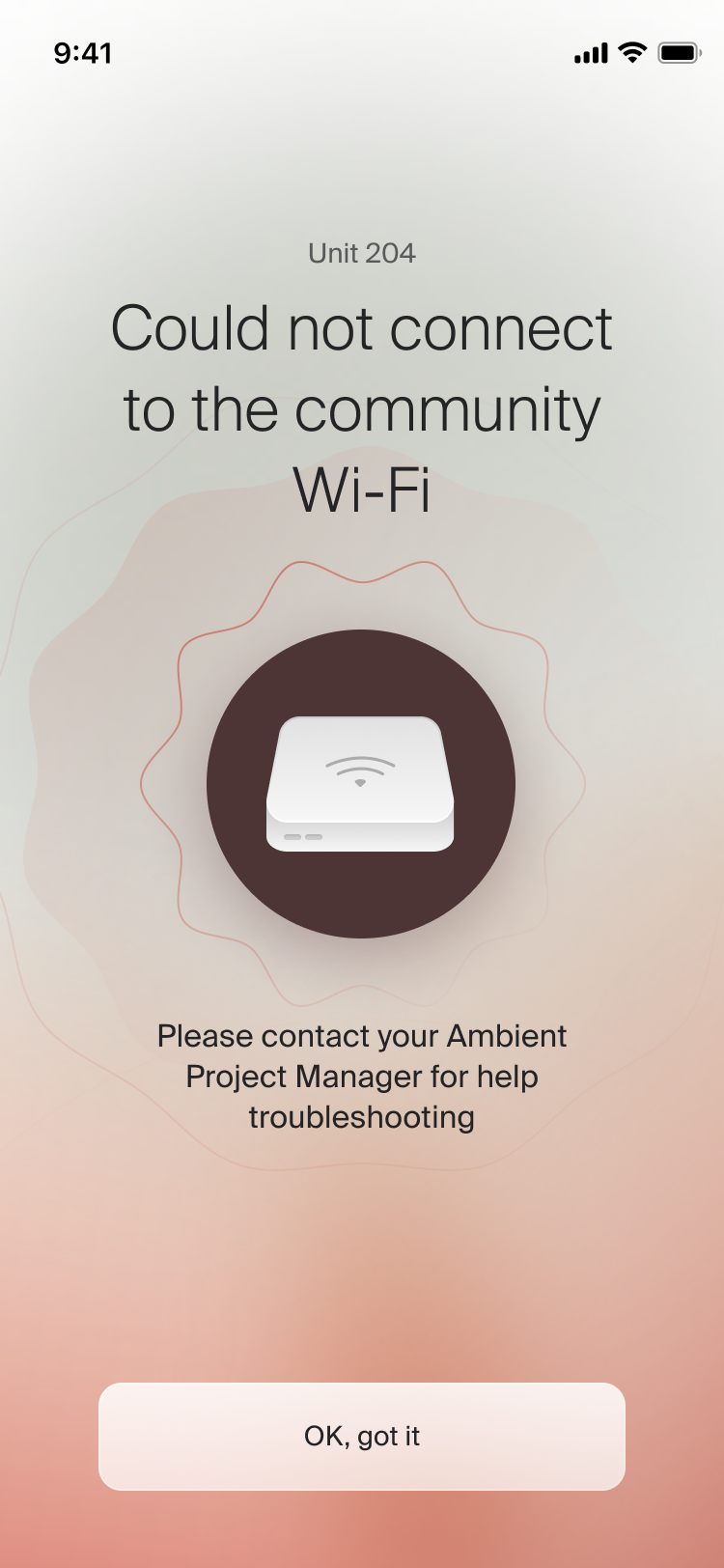
If connecting to Wi-Fi is unsuccessful, you will be able to continue with the installation using a cellular connection for the Hub. You will see a toast message informing that a Wi-Fi connection ought to be available. This toast will persist until the connection is successful. Clicking into the Hub detail card, you will find an action to try the Hub to Wi-Fi connection again.
 |  |