Staff support
Including Z-Wave Devices
Z-Wave is a world-leading wireless communications protocol designed specifically for smart home automation.
To manage security and organization, Z-Wave devices must be "introduced" to your specific Hub. This is handled through two primary processes: Inclusion and Exclusion.
Inclusion is the formal process of pairing a new device to your network.
Including in Ambient Installer App:
-
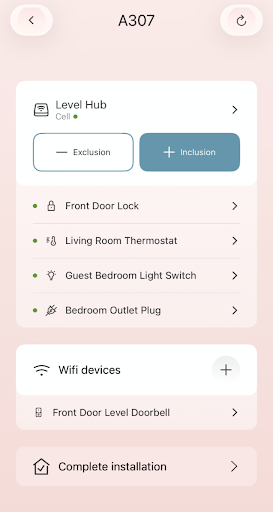
From the Unit Landing Page click the ‘Inclusion’ button. The hub will enter inclusion mode and show you a 60 second countdown.
-
While the hub is in inclusion mode press the device’s pairing button to get it to reach out to the hub. The pairing button location on the device will vary between different Z-wave devices. Refer to the product manual for further information on your specific device(s).
-
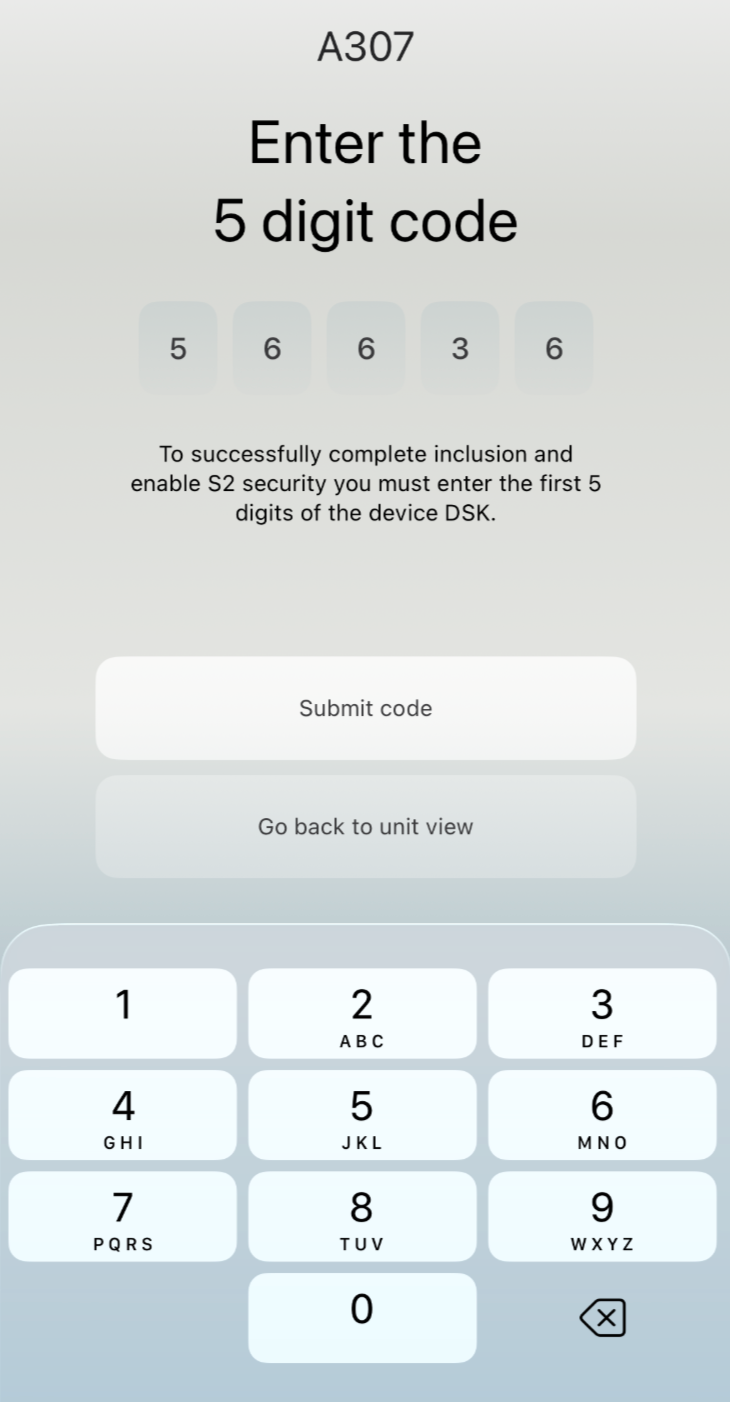
If the device needs authentication with S2 security the app will prompt you to input the 5 digit DSK code found on the device. Type in the 5 digit number and click ‘Submit code’. Refer to the product manual for the location of the DSK code on your device(s).
-
Note: If the device does not require S2 Authentication the app will skip this step and move immediately to the next screen.
-
If the device has a string of numbers for the DSK code, it will always be the first 5 digits of the string.
-
-
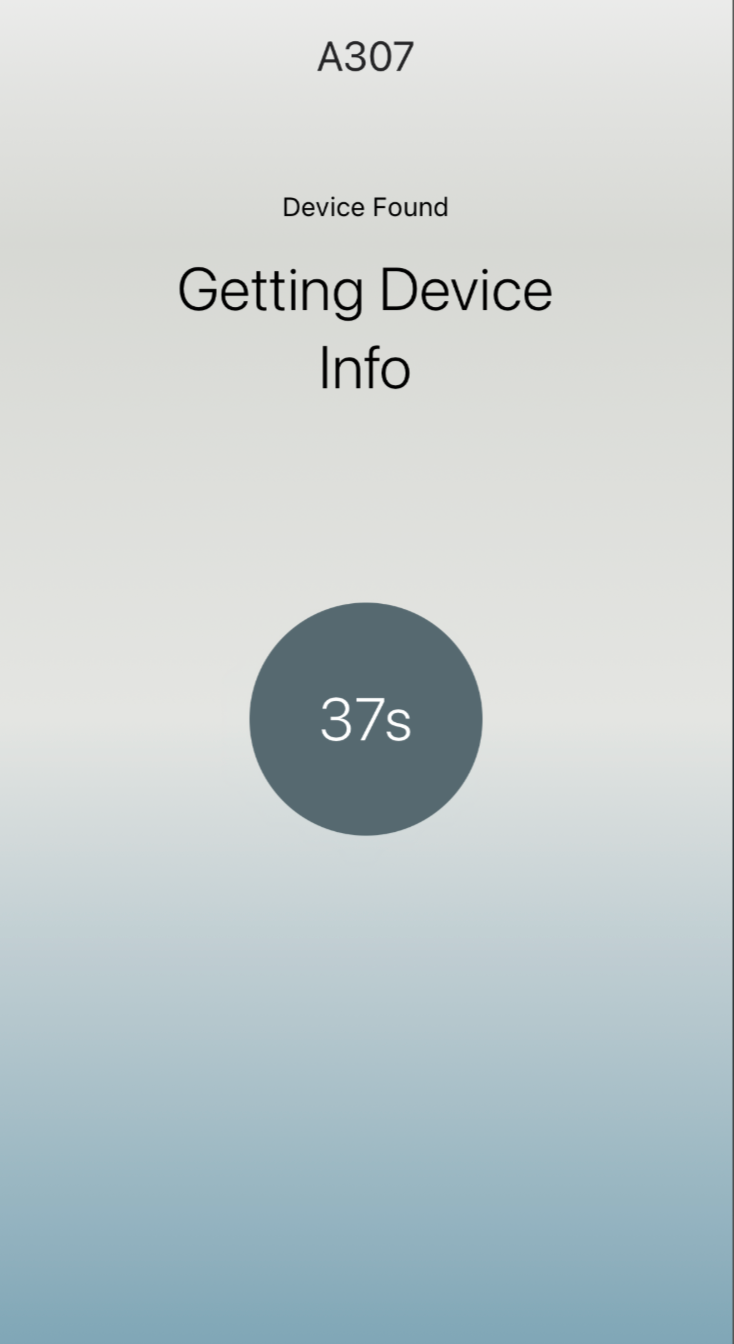
When the signal from the device reaches the hub the ‘interviewing’ process between the device and the hub will begin. You should see the countdown timer pause and the screen will now show ‘Getting Device Info’
-
The interview process for each device will take anywhere from 1-5 minutes usually and will vary depending on device type.
-
-
When the interview process completes successfully you will see confirmation in the app that ‘Inclusion was successful’. Click ‘Name device’.
-
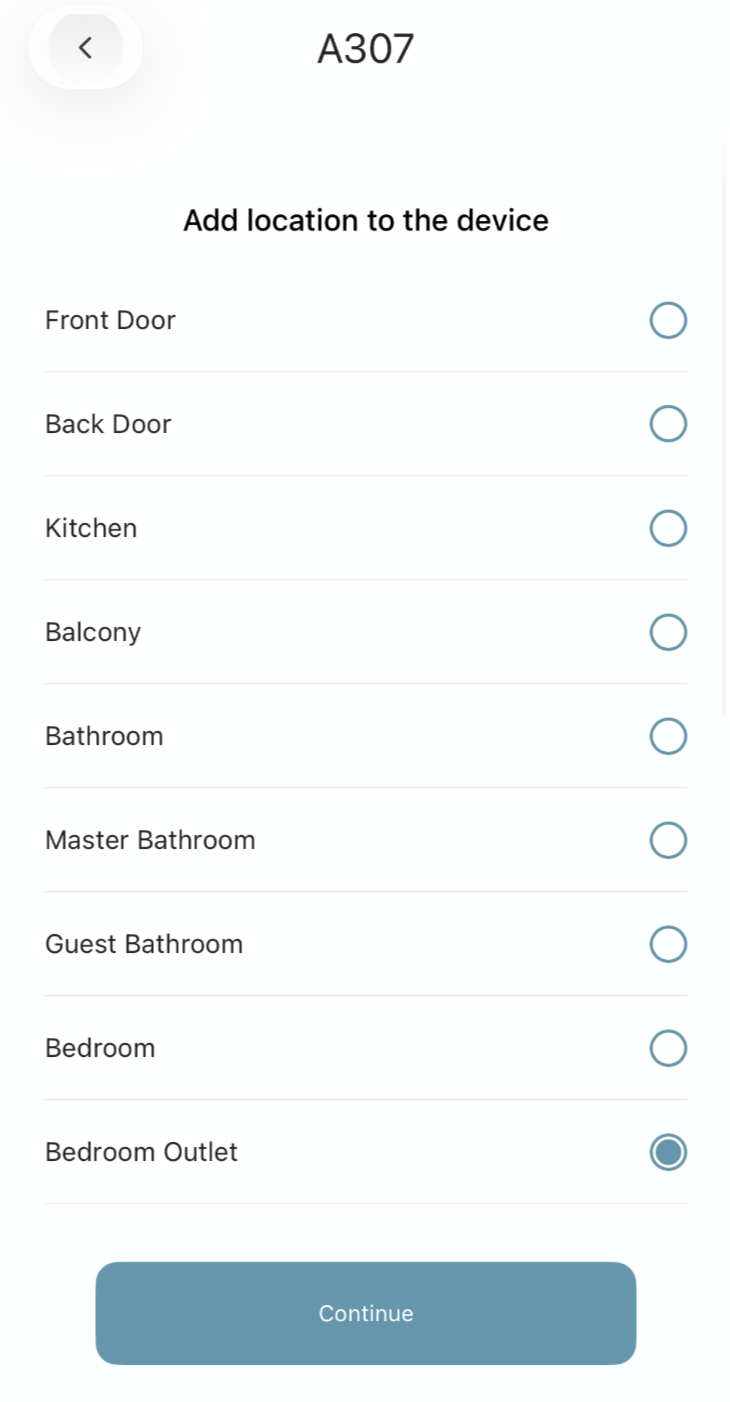
Assign the device a location with the appropriate naming convention and click ‘Continue’.
-
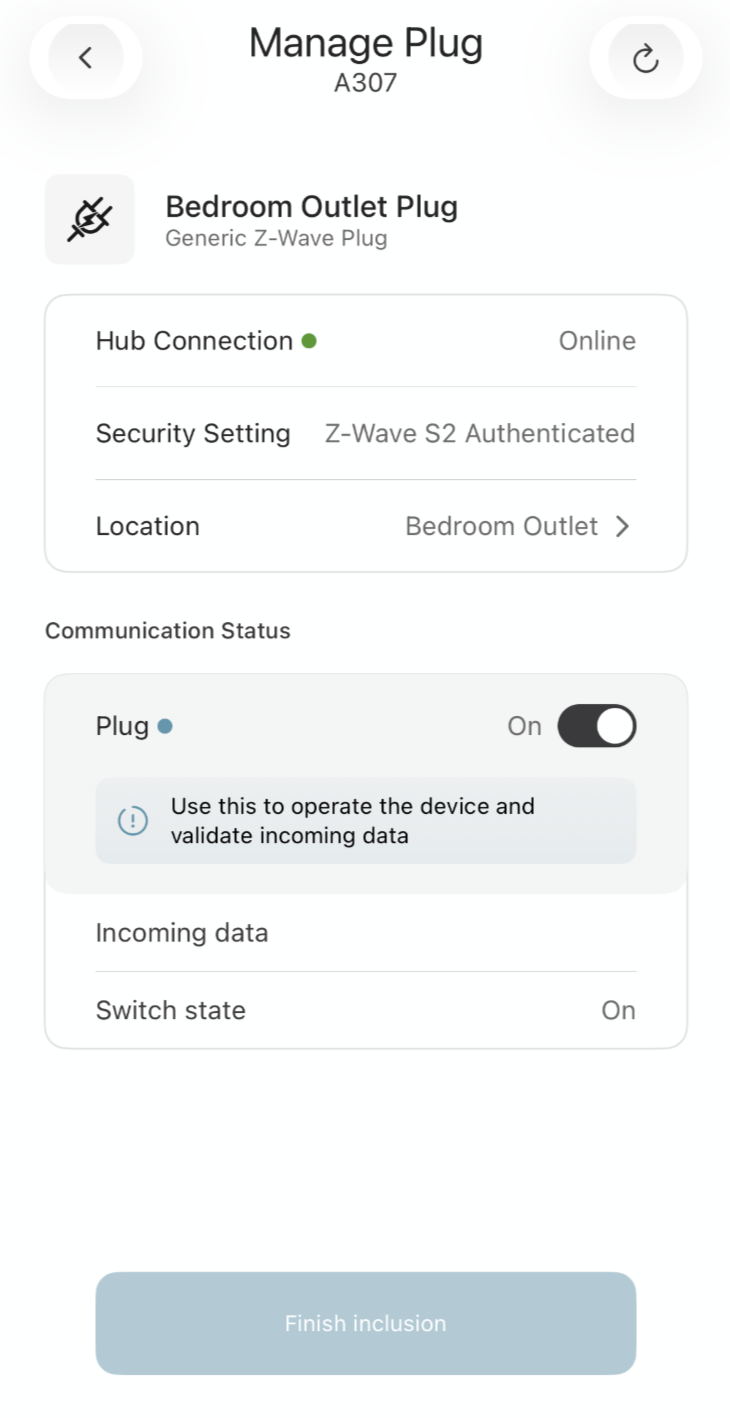
You can now test the device’s responsiveness to remote commands from the device details page. Click the toggle to send a remote command and confirm at the device that the physical state of the device changes in correlation with the command sent.
-
Important: The app will not allow you to move past this page without testing the device. The ‘Finish inclusion’ button will be grayed out until a command is sent to the device.
-
-
After successful testing (device is responding to remote commands and switch state continues to show the correct physical state of the device) click ‘Finish inclusion’ at the bottom of the page.
-
The app will return to the unit detail page and you will now see your device listed in the Z-wave device list.