

Staff support
Level Hub connection
Devices like your lights, locks, sensors, and thermostats connect with a network through a Level Hub. If the Hub is disconnected, you won't be able to use your smart home with Ambient.
How to connect a Level Hub
1. Find the Hub
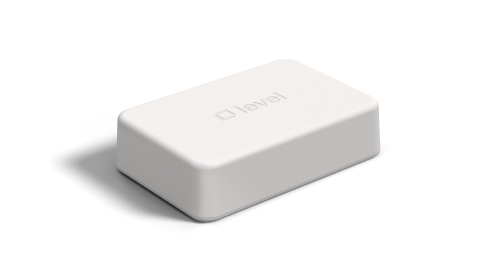
The Hub is a 5.5" x 3.75" x 1.25" white box with the Level logo embossed on the top. The Hub may be attached to a wall in the living room or bedroom, or it may be in the media cabinet. If you need help finding the Hub, ask a member of your property staff or Support.
2. Connect the Hub to power
When you connect the Hub to power, it will take about five minutes to fully power up. The LED lights will not turn on for about two minutes.
Important: Don't plug the Hub in to an outlet that's controlled by a switch.
3. Connect the Hub to the internet
We recommend connecting the Hub to Ethernet for the best experience using Ambient. To connect the Hub to Ethernet:
- Plug the cable in to your router or internet access point.
- Plug the cable in to the Hub.
- Wait about 30 seconds while the Hub connects.
4. Check the Hub's connection status
There are three LED lights on the Level Hub. Use these lights to check the Hub's connection status.
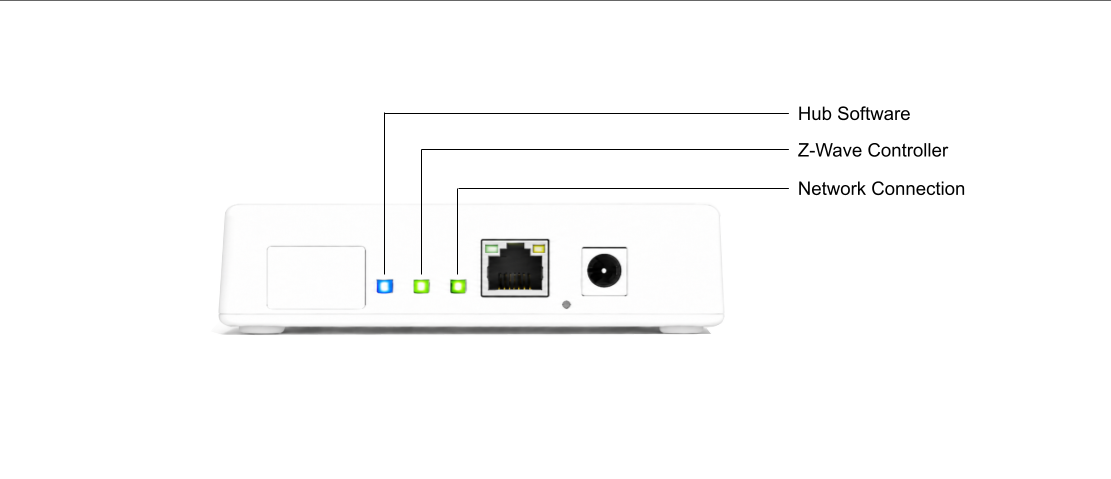
Note: When you connect the Hub to power, it will take about five minutes to power up. Wait for the Hub to fully power up before checking its connection status.
| Normal Operation | Error States | |
|---|---|---|
| Hub Software | Solid Blue: Hub software is running normally |
Solid Red: Hub software is shutting down. Tip: Attempt to Reset the Hub. Contact Support if issue persists. |
| Z-wave Controller | Solid Green: Z-Wave controller is running normally |
Solid Red: Z-Wave operations are unavailable. Tip: Attempt to Reset the Hub. Contact Support if issue persists. |
| Network Connection |
Solid Green: Hub is communicating through a wired Ethernet Connection Solid Purple: Hub is communicating over WiFi Solid Blue: Hub is communicating over a backup cellular connection |
Solid Red: No active connections to the Ambient Platform. Tip: Connect the Hub to a direct Ethernet Connection. |
5. Reboot the Hub
If you've tried all of the steps above and you're still having trouble using devices in the unit with Ambient, you may want to try rebooting the Hub.
To reboot a Hub:
- Press the reboot button with a straightened paper clip and release it. This is a recessed button next to the power port.
- Wait about five minutes while the Hub restarts.